
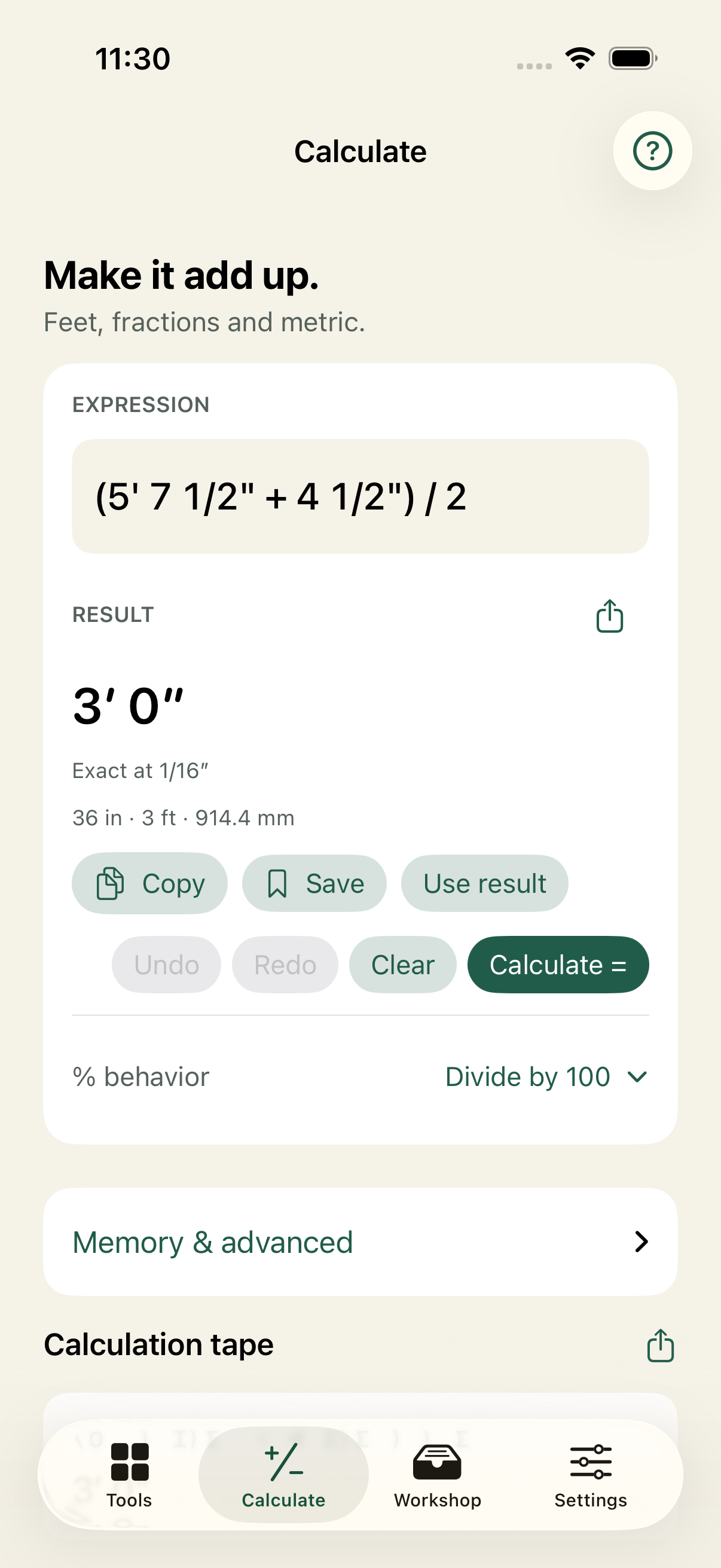
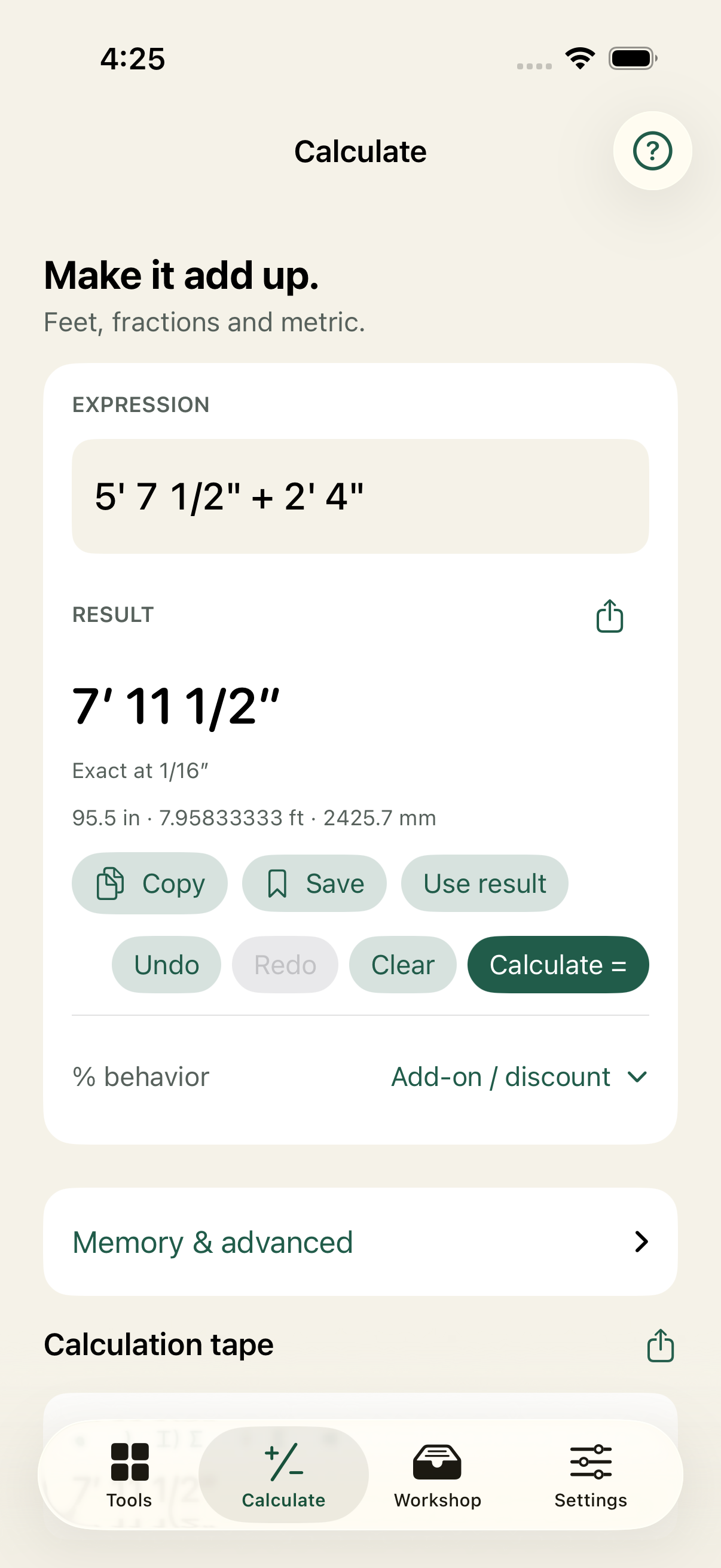
Calculate → enter 5′ 7 1/2″ + 2′ 4″ → Calculate =.
Construction math, clear layouts and the whole job in one place. Measure, plan, mark up a photo and keep the answer for next time.
Feet and inches, fractions, metric, areas and volumes. Put them in an expression, keep your result and use it in the next step.
Calculate → enter 5′ 7 1/2″ + 2′ 4″ → Calculate =.
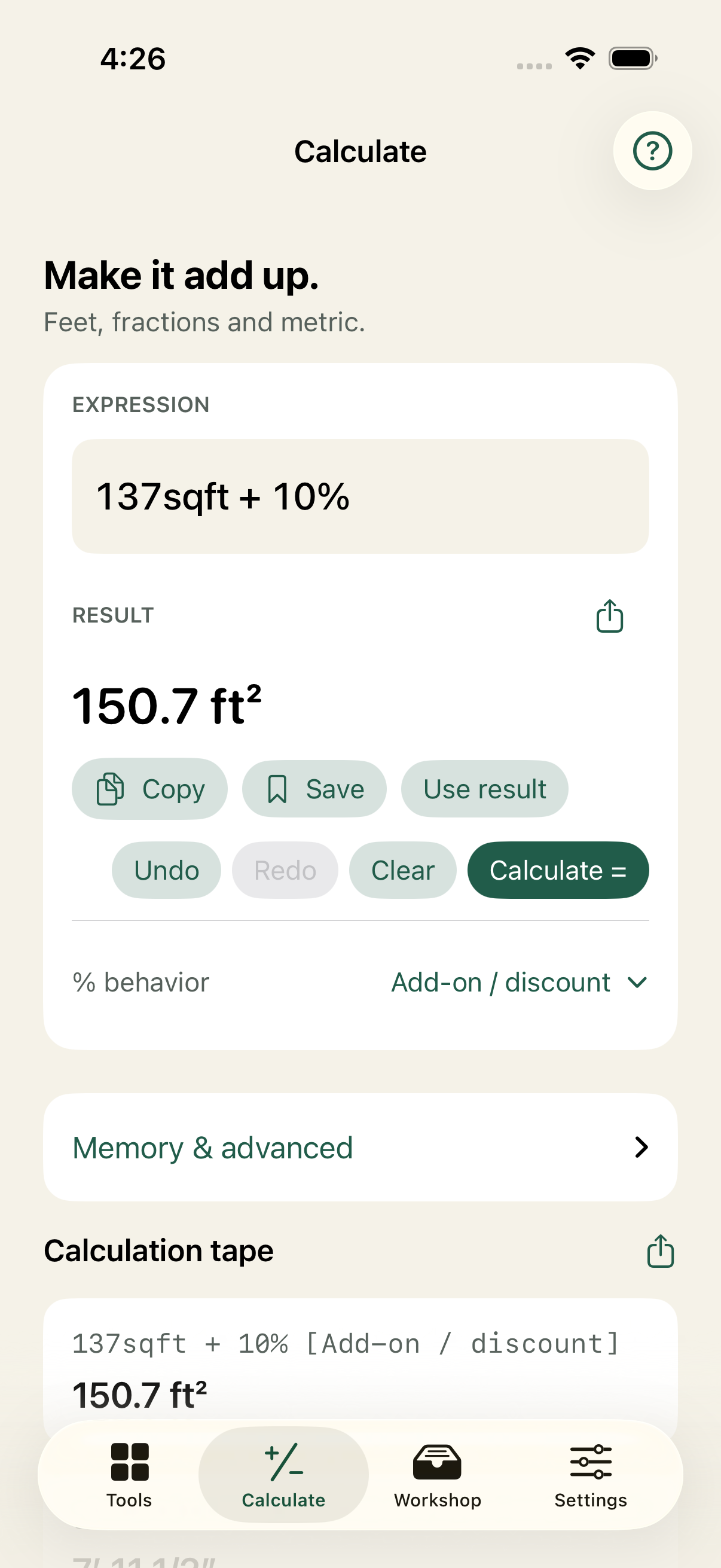
Choose Add-on / discount for Percentage (%) behavior. Enter 137sqft + 10%, then Calculate =.
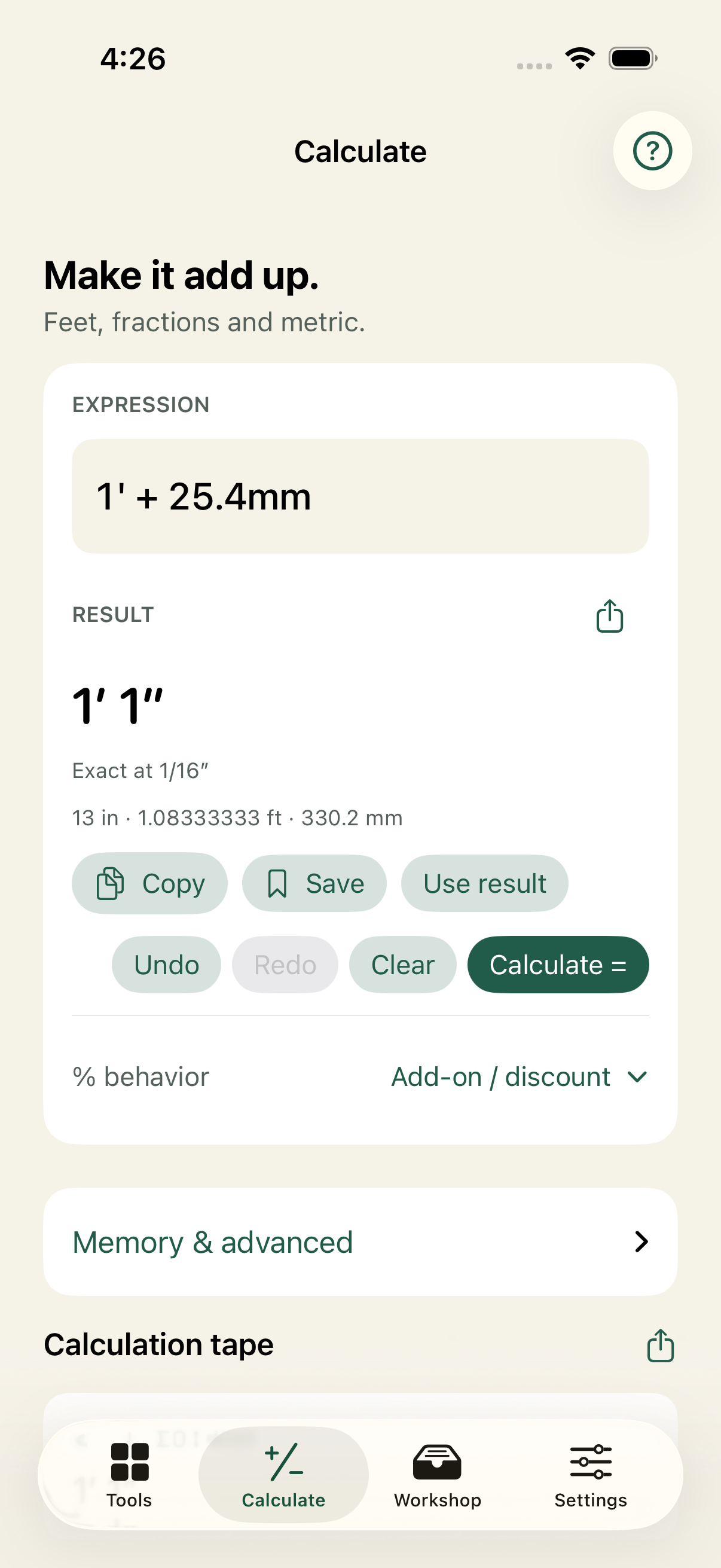
Calculate → enter 1′ + 25.4mm → Calculate =. Compatible units combine in one expression.
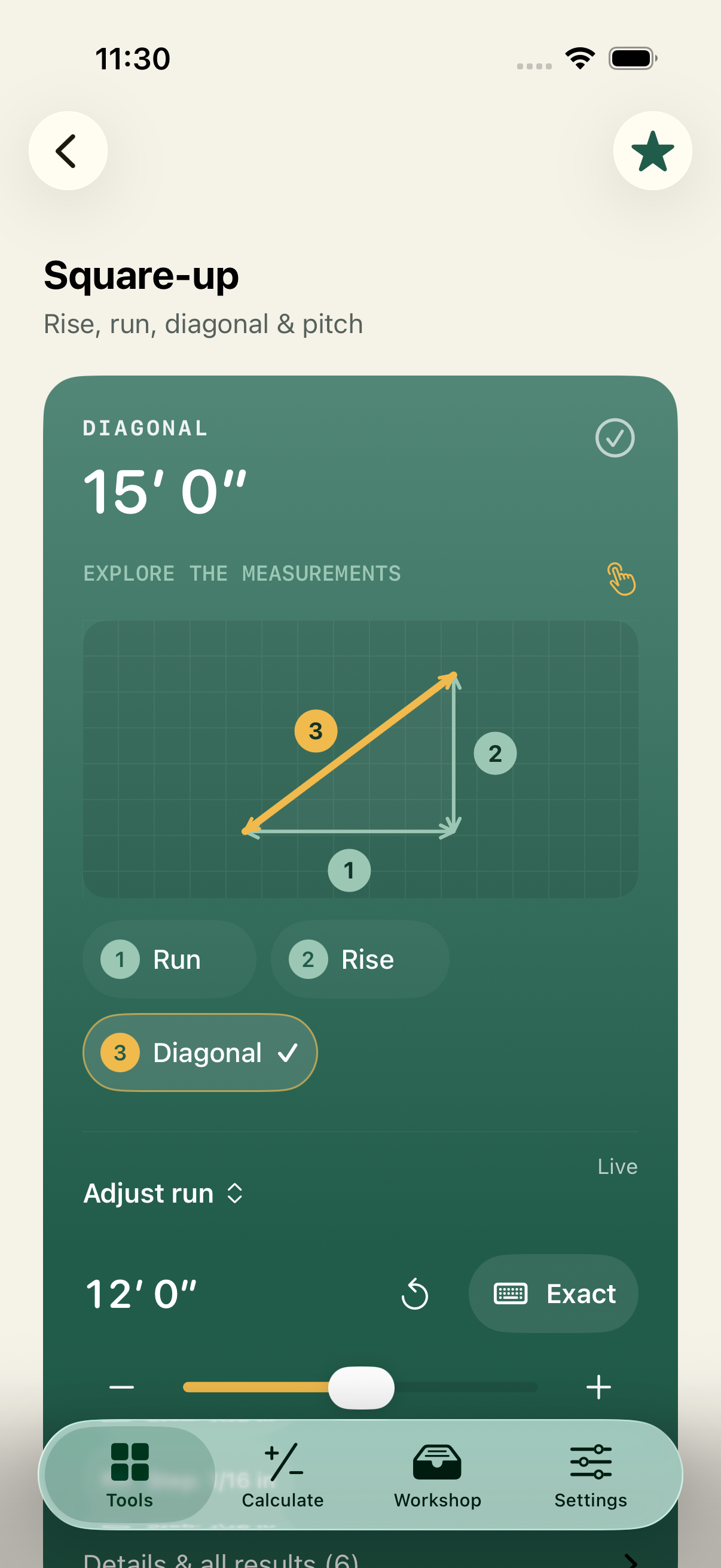
A diagonal is more useful when you can see where it belongs. TradeCalc pairs calculations with interactive diagrams. Tap a numbered marker to highlight its measurement, then adjust an input and watch the results change.
Use the same Square-up workflow here: select Run or Rise, choose an adjustment step, then use the slider or plus and minus. Exact opens its measurement field. Undo and Redo recover edits. The numbered Diagonal marker highlights the calculated result.
See all the layout toolsSide view · diagonal joins the ends of the run and rise
Feet, inches, fractions or metric. Bare numbers mean inches.
Square-up example · select a numbered measurement, adjust it, or use Exact. Diagonal is a calculated result; selecting it highlights the diagram.
Keep the live diagram beside your measurements. Compare a result without scrolling away from the input that changes it.
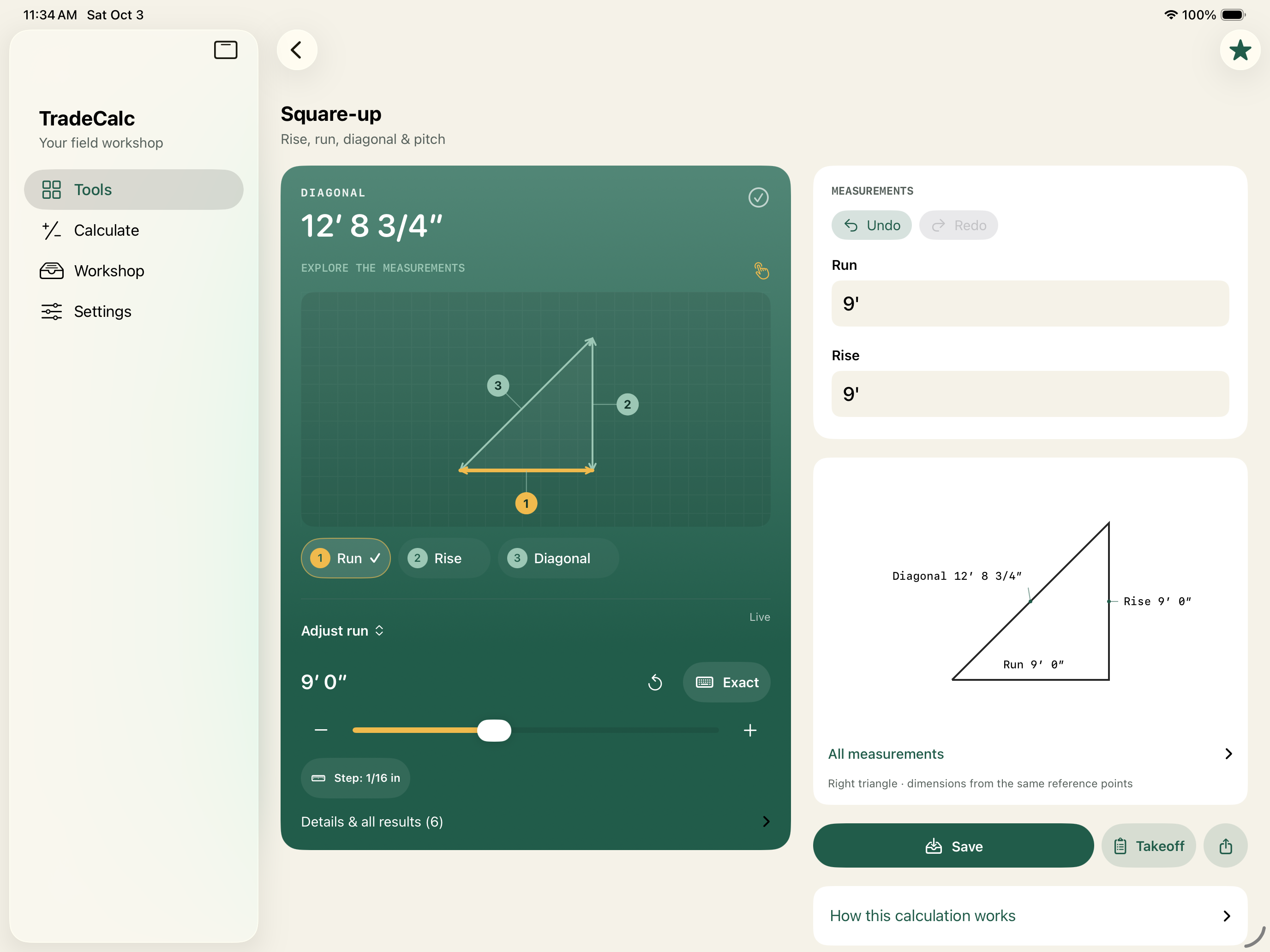
Keep the expression and previous calculations in view. Cut planning and saved layouts make use of the extra space, too.
Rotate or resize the app. Wider windows use columns; smaller windows and larger accessibility text reflow to one column.
Browse a wider tool library. On iPadOS 18 and later, adaptable navigation adds a sidebar in wide windows.
Supports iPadOS 17 and later. Sidebar navigation requires iPadOS 18 or later.
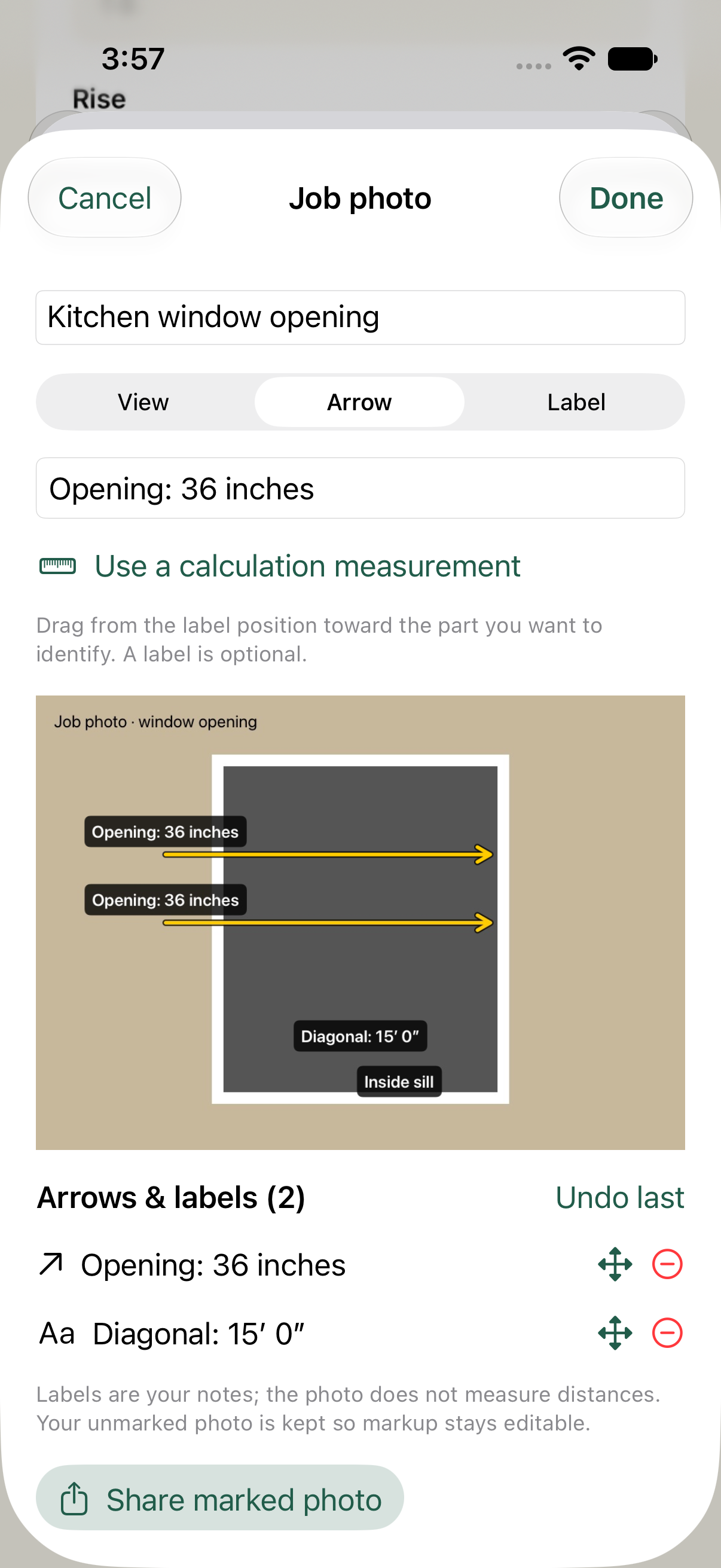
Save the answer with the opening, wall or detail it belongs to. A photo makes “that measurement from yesterday” much easier to find.
Photos are references. Measurements come from your inputs, not automatic image measurement.
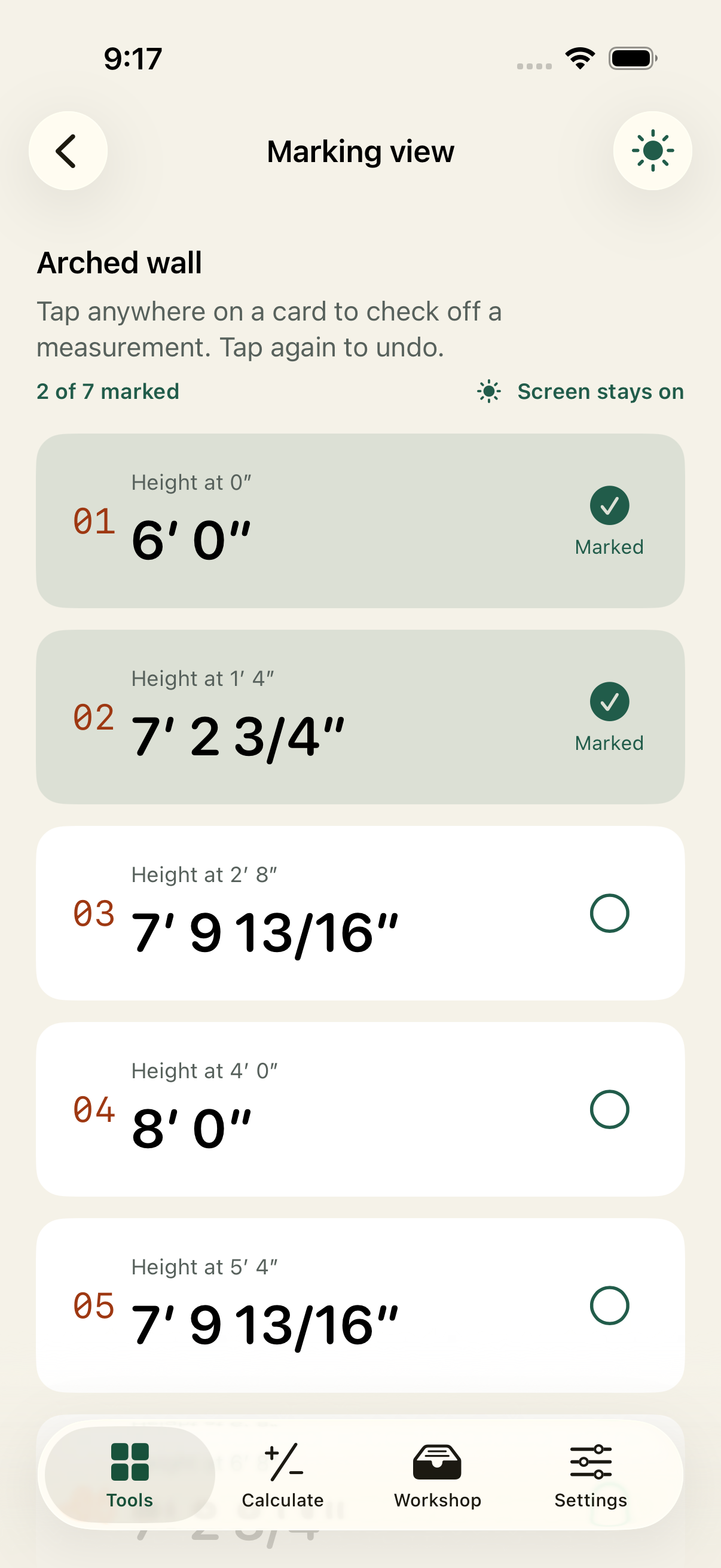
Open Marking view for a readable list of positions and measurements. Work down the list without losing your place.
Tap anywhere on a card to check it off. A visible count keeps track of your progress.
The sun button keeps the display awake for ten minutes. “Screen stays on” makes the setting clear.
Calculations, saved jobs and the Field Guide stay available offline.
Checkmarks reset when you leave Marking view. Keep-awake ends when you leave the app. Internet is needed to start or restore trial and purchase access.
Keep editable calculations, notes, plans and photos organized by job. Revisit an input without starting the whole calculation again.
Save a sheet, name the job and add the details that make the result useful later.
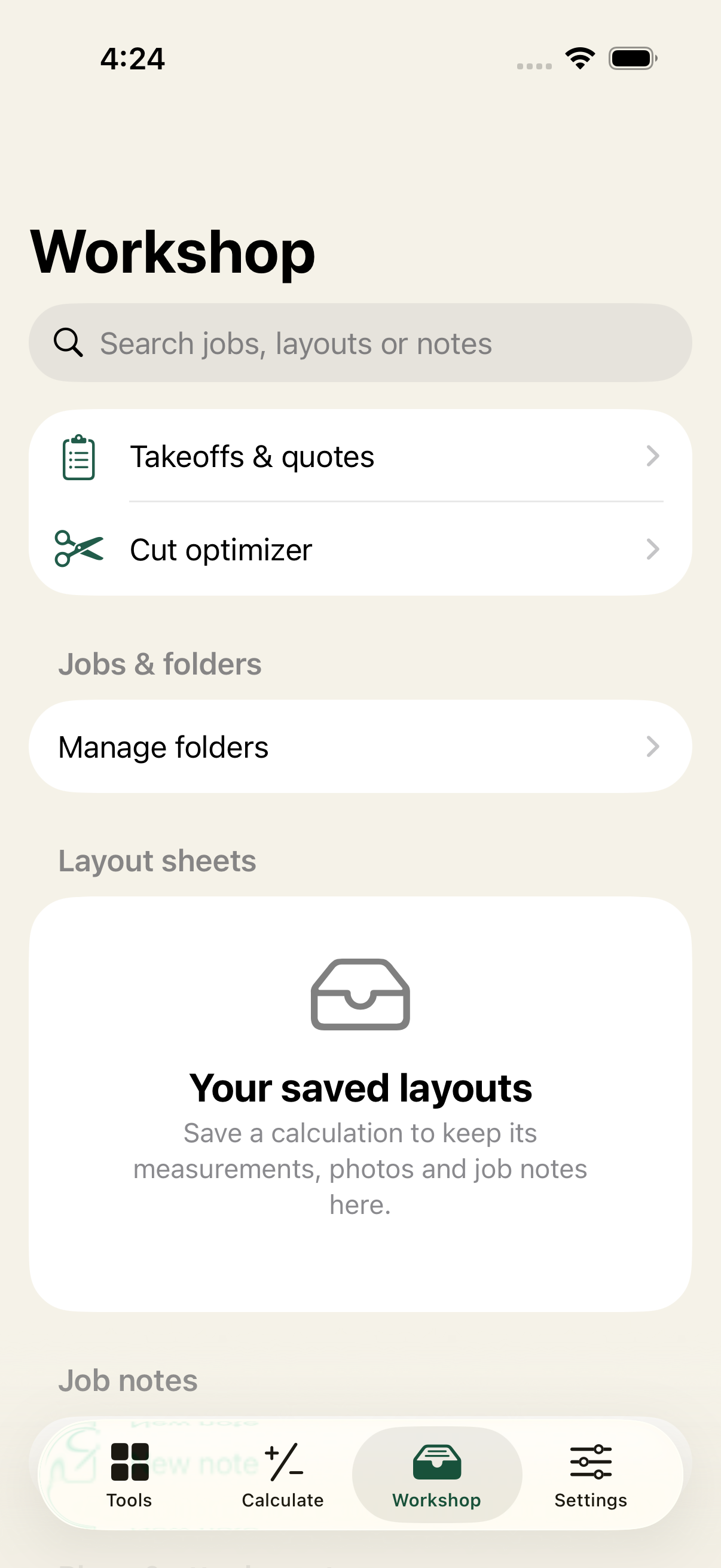
Workshop → Manage folders organizes jobs. Saved layouts, notes and attachments appear in their own sections.
Import PDFs and photos into job folders. The PDF viewer remembers your page, zoom and position; zoom into photo details when you need them.
Edit or duplicate saved calculations, pin the important ones and search names, jobs, notes and photo captions.
Go from quantities to a practical cutting plan or estimate. Use the stock you have, enter the prices you pay and share a clear job sheet.
Enter prices directly in 12 material and framing tools. See whole-container alternatives for paint, compare bagged concrete with ready-mix, or total the components you have priced.
One switch for all of them: Settings → Show material pricing. Hide costs when you just need quantities; your entered prices are kept for next time.
Material estimates are before tax. Delivery, supplier minimums and unpriced components are separate. Alternative purchase methods are compared, not added together.
Enter required pieces, available board lengths, offcuts and quantities. Allow for the width of the saw cut and compare plans using material use or purchase cost.
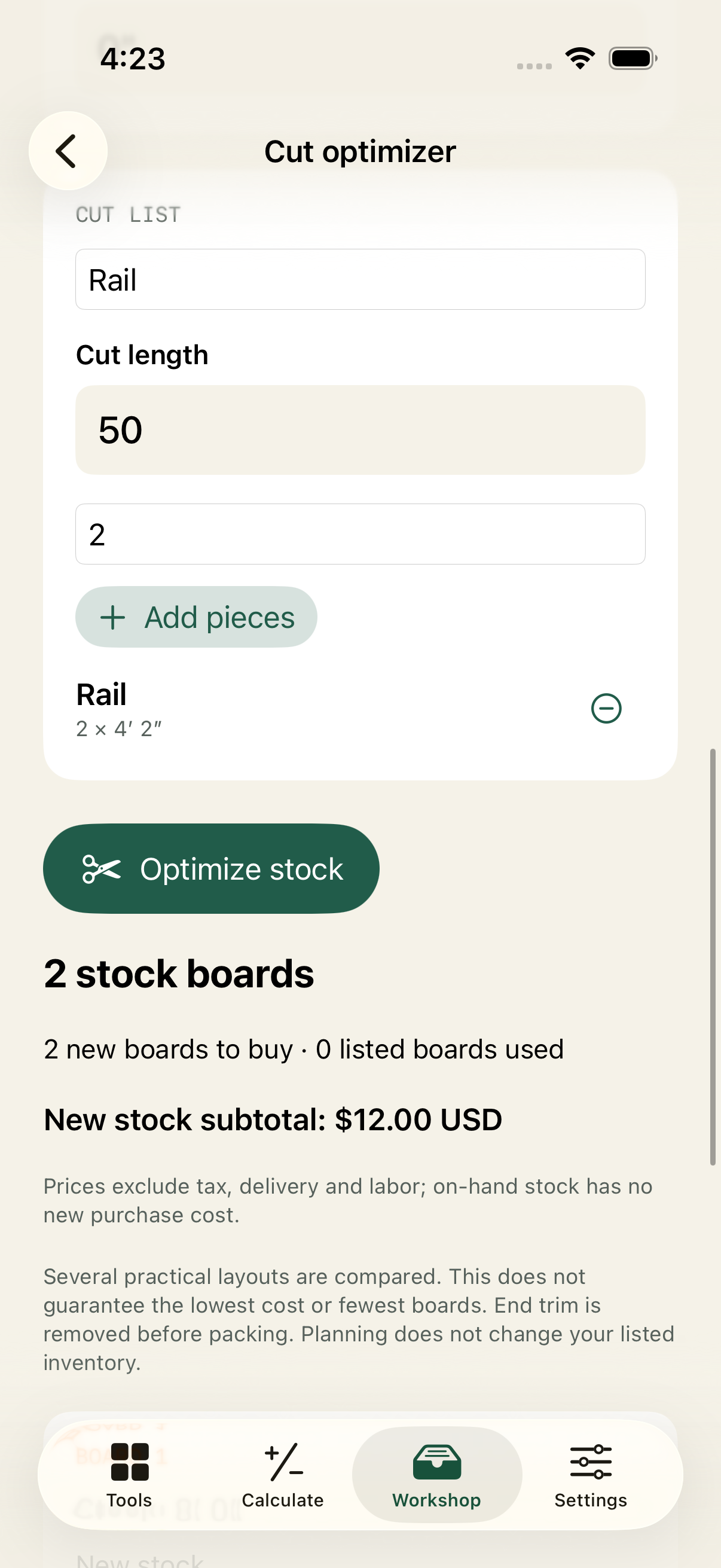
Workshop → Cut optimizer. Enter pieces and stock, choose a planning preference, then tap Optimize stock.
Cut planning compares practical arrangements. It does not guarantee the lowest possible cost or waste.
Build a takeoff with material lines and remembered unit prices. Add labor, markup and tax, then export a PDF under your company or workshop name.
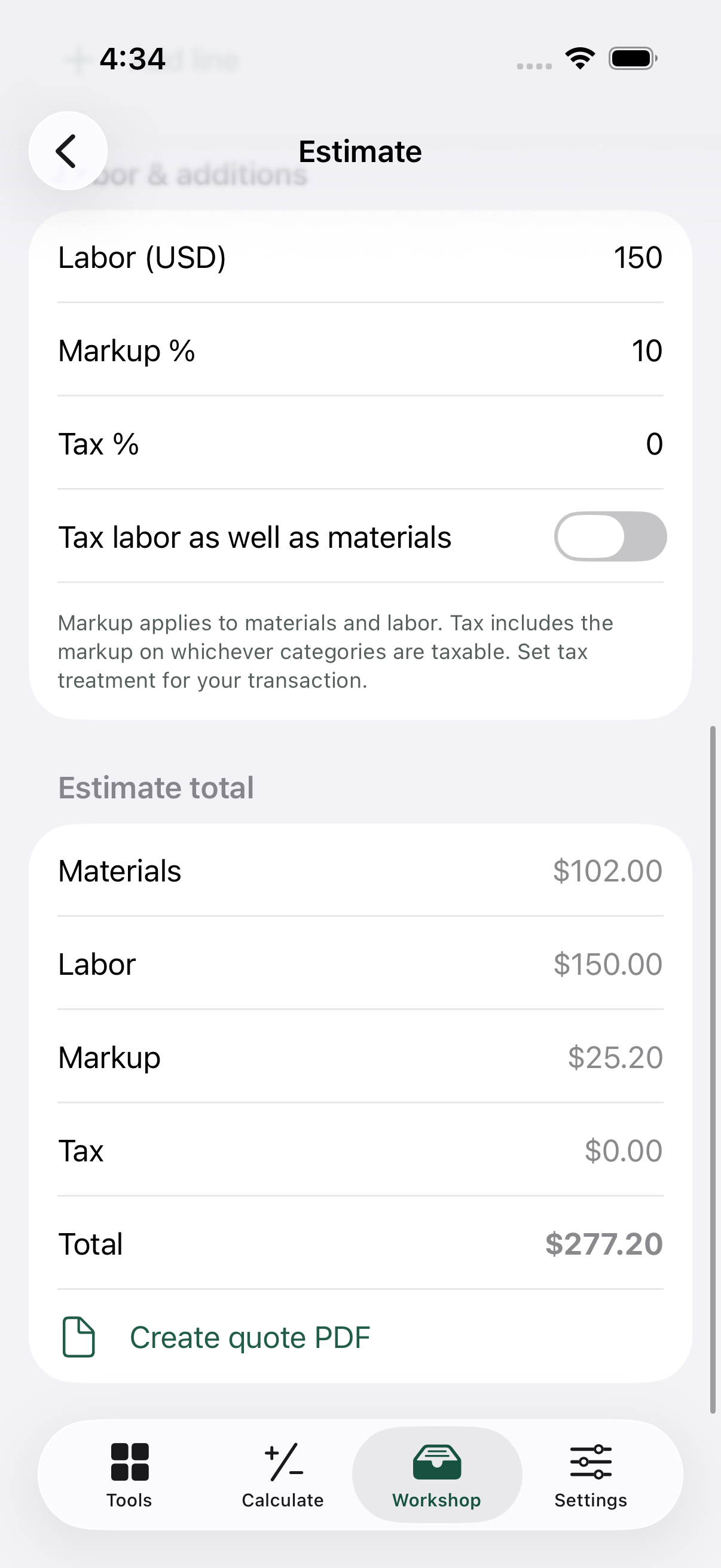
Workshop → Takeoffs & quotes → New estimate. Add material lines, set labor, markup and tax, then choose Create quote PDF.
Open a category to see every calculator. These are included alongside Calculate, saved jobs, photo markup, cut lists and estimates.
From a room diagonal to evenly spaced panels, railings and curves.
Choose piece count, maximum gap or nearest center spacing. Set end offsets, different end-piece widths, and center or edge marks.
Enter rise and run to find the diagonal, angle and pitch. Use it to check a rectangular layout.
Calculate rectangular areas and subtract openings for practical floor and wall quantities.
Find circumference, arc lengths, sectors and circular segments from your dimensions.
Find perimeter, area, center-to-corner and center-to-side distances, interior angles and miter settings.
Enter all three side lengths to calculate the opposite angles, area and perimeter.
Convert an angle entered in degrees, minutes and seconds into decimal degrees.
Calculate level gaps and marking positions along a sloping rail.
Repeat a baluster pattern across stair treads and calculate the different cut lengths.
Solve from any two sides, or a side and an angle, rather than always starting with rise and run.
Convert a signed decimal angle back into degrees, minutes and seconds.
Stairs, walls and roof geometry with the allowances and references that matter.
Compare riser counts and available run. Account for tread layers, floor finishes, nosing, headroom and stringer layout.
Work from building span and roof pitch, with ridge thickness, horizontal overhang and cut angles.
Explore equal or unequal pitches, non-square eave corners and jack lengths for both roof planes.
Count studs, plate runs and sheathing, with optional component prices. Include extra studs for corners and openings.
Find individual stud heights beneath a sloping top, with spacing and plate allowances.
Compare centered, backed hips with shifted, unbacked hips. See roof-plane alignment and edge offsets for supported convex roofs.
Calculate backing, sheathing and purlin settings for supported roof geometry and stock orientations.
Use the opening width and circular arch rise to find heights at individual stud stations.
Work through seat, heel and height-above-plate geometry from your rafter inputs.
Turn dimensions into quantities, coverage, volume and material costs.
Calculate lumber volume in board feet and apply a unit price for the material total.
Estimate volume, bags and weight. Enter bag or ready-mix prices to compare purchase costs.
Calculate round column or cone volumes, with material bags and weight.
Convert the roof footprint and pitch into sloped area, roofing squares, bundles and sheathing quantities.
Account for openings and panel dimensions when estimating drywall or siding quantities.
Include openings, coats and coverage. Enter one-gallon and five-gallon prices to compare whole-container cost options.
Calculate pieces, boxes and layout remainder from room and product dimensions.
Plan board rows, linear footage and joists. Add board and joist prices to estimate the materials you have priced.
Estimate posts, rails and pickets, with optional component prices and a priced-materials subtotal.
Estimate masonry units and courses, including your material allowance.
Use volume and material density to convert between weight and volume units.
Crown molding with corner, piece and saw orientation in view.
Choose inside or outside corners, left or right pieces, and nested, single-bevel or dual-bevel saw setups.
Tools calculate from your inputs. Supported roof and stair configurations have specific reference conventions; the app’s guidance explains their scope. TradeCalc does not certify structural capacity or building-code compliance.
Field Guide examples open the matching calculator with the sample measurements already filled in. Change an input and try the same workflow on your own project.
Find a familiar job or a tool you want to understand.
The app takes you to the tool with the example values ready.
Adjust the inputs, inspect the result and save your version.
Undo and redo calculator edits, live measurement adjustments and photo marks. Recover a change and keep exploring.
Use memory, three saved registers and the calculation tape to pick up where you left off.
Choose the step for live adjustments. Display fractions from ½″ to ¹⁄₆₄″ or metric results; rounding does not change stored measurements.
Tap numbered markers to highlight a measurement. Detailed drawings keep labels separated, with a measurement key when space is tight.
Search the Field Guide and read explanations offline, right alongside the tools.
Favorite tools, search saved work, pin important sheets and duplicate a calculation for the next variation.
Jump directly to any of the 32 calculators through Siri or a shortcut you set up.
On iPad, use keyboard shortcuts for navigation and undo/redo alongside the wider workspace.
No login. No advertising. No analytics SDKs. Saved work stays on your device. Export a complete workshop backup with plans and photos, then import it when you need to move or restore your work.
Complete backups support up to 64 MB of attached files. Imports merge saved work. Exports and device backups follow the sharing and Apple settings you choose.
Download free and start seven days with every tool. When the trial ends, choose a lifetime unlock to keep using the tools. There is no automatic charge.
U.S. lifetime price. Apple shows the local price before purchase. Existing paid customers keep full access at no extra cost.
Install TradeCalc, then choose “Start 7-day free trial.” All 32 tools, saved jobs, photo markup and exports are included.
iPhone & iPad · iOS 17+ · U.S. App StoreGet TradeCalc on the App StoreThe trial stops and no payment is taken automatically. Choose the $4.99 one-time Lifetime Unlock (U.S. price) to keep using the tools. Your saved work stays on your device, and complete workshop backups remain exportable even if you do not unlock.
No. Existing paid customers keep full access at no extra cost. Use Restore purchases if you need to recover your access after reinstalling or moving devices.
In Settings, open Trial & lifetime access and choose Restore purchases using the Apple Account that started the trial or purchased the unlock. Restoring or reinstalling does not restart the seven-day trial.
Yes. Core calculations, saved jobs and Field Guide explanations work offline after trial or lifetime access is verified. Internet is needed to start a trial, buy or restore access, visit support pages, or send files through an online service.
Yes. Length fields accept feet, inches, fractions and metric. Calculate lets you combine compatible units in an expression and work with area and volume. You can also choose your preferred display precision.
No. Add measurements you have taken or values from a saved calculation. The photo editor lets you annotate and organize them; it does not infer real-world distances from an image.
Yes. Settings → Show material pricing controls price fields and cost results in all 12 supported material/framing calculators, including saved calculations and exports. Turning it off keeps your entered prices saved.
Export a complete workshop backup from Settings, transfer the file and import it on the other device. This is a manual backup workflow, not automatic cloud syncing. Complete backups include up to 64 MB of attached files.
This release is for iPhone and iPad. Bluetooth laser-measure integration and an Apple Watch app are not included.
It supports many practical layouts, including detailed straight stairs and irregular roof calculations, but not every assembly or connection. Read the tool’s references, verify site dimensions and test saw settings on scrap before cutting finished material.